
The Pro Tools 2024.6 software update is now available and introduces significant new capabilities for both music and audio post-production customers, including ARA 2 support for solutions from iZotope, Synchro Arts and Sound Radix, two new bundled MIDI effect plugins from Mixed In Key, and session export for Media Composer.
The new release also delivers improvements to Dolby Atmos®, MIDI note display, session data search and import, memory locations and more.

ARA 2 support
Version 2024.6 adds ARA 2 support for six plugins, including iZotope RX Spectral Editor, Synchro Arts RePitch, VocAlign and Revoice Pro, as well as Sound Radix Auto-Align 2 and Auto-Align Post 2. Together with the existing Celemony Melodyne integration, ARA 2 support lets users take advantage of these tools much more quickly and easily in Pro Tools without having to round-trip the audio. In addition, customers with active subscriptions and perpetual upgrade plans will automatically receive iZotope RX 11 Spectral Editor and Synchro Arts RePitch Elements as part of this release.

New bundled MIDI plugins
Version 2024.6 gives Pro Tools customers two new MIDI plugins from Mixed In Key: Captain Chords Lite and Human Lite. Captain Chords Lite is a perfect songwriting companion that lets users choose any key and create chords instantly, with full control over inversions, substitutions and passing tones. Captain Chords Lite also includes a library of chord progressions and rhythms to experiment with and create something amazing. The Human Lite plugin adds the organic feel of live musicians to quantized MIDI performances, loops and even entire tracks. The Captain Chords Lite and Human Lite plugins are available exclusively to all Pro Tools customers with active subscriptions and perpetual upgrade plans.
Import session data
Import Session Data is a fundamental part of Pro Tools used by almost everyone to transfer data between sessions. As more functionality has been added to Pro Tools, sessions have grown larger and more complex over time, and the requirements of Import Session Data have increased too. We had reached the point where even finding a place to add a single checkbox was difficult, so it became clear that broader changes were needed.
 |
|

The changes originated with one request: allow the ability to filter out inactive tracks. To understand how we accommodated that request, it helps to understand a little about what happens under the hood. When a session is saved, Pro Tools stores a small amount of summary data. That way, it can scan the surface of the session much faster when opening it. The existing session summary already gave us information about track types, widths and names, so we only had to add "inactive tracks" to the list. But since we were adding new data to the summary, we thought about other types of data that might be useful—track color, hidden state, frozen state, are there clips on the track? And what about automation or markers? This allows us to display more information about the tracks, as well as filter the data. Since track names were another obvious item to filter on, we added them.

With filtering, you can limit the number of tracks that "Match Tracks" applies to. This means you can filter a set you'd like matched, press the "Match Tracks" button, change your filter and then match again, without destroying your previous match.
After these changes, we stopped to take a look at the window. Since there wasn't enough room for the track list, we moved it to the right side and made it horizontally resizable. We also streamlined the overall window layout and made the Source Properties section collapsible, so it's easier to fit more import options on screen.
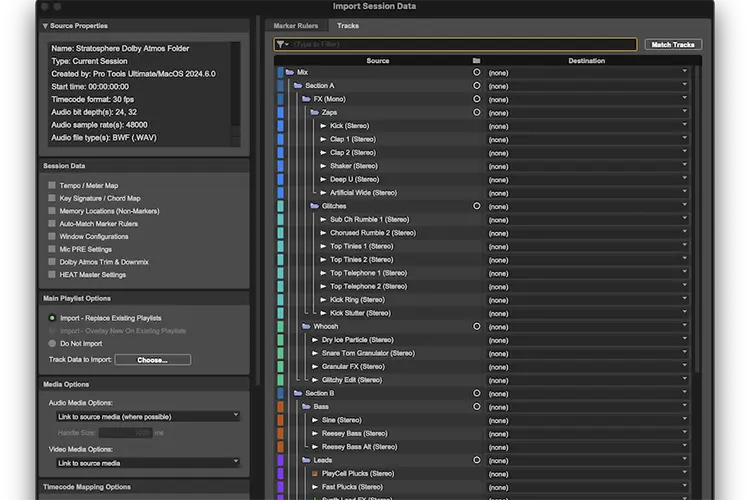
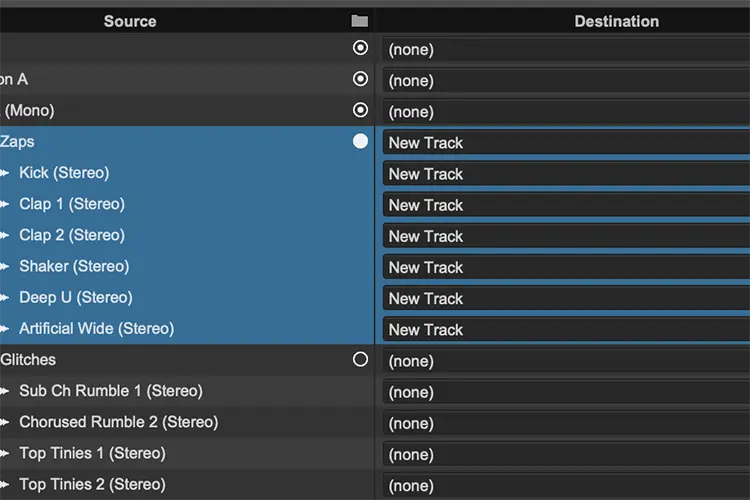
Using text had taken up a lot of space to describe track types, so we used the established track type iconography instead. This gave us folder icons, which you can click, just like in the Edit and Mix windows. Another common request we heard was that when importing a folder track, its members were not included. Although we didn't want to force this to always happen, we added a new button next to each folder, letting you import it along with all of its members. The great thing about this is that you can even close the folder to hide the members while still being able to import them all.
Smart show and hide
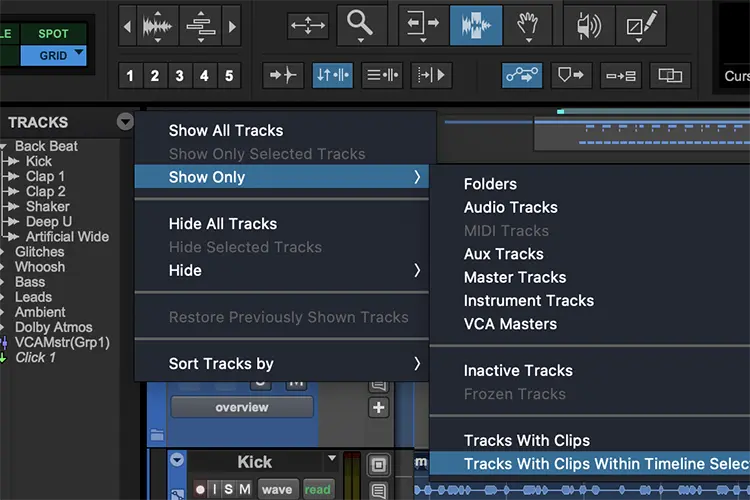
The work we did to filter track data in the Import Session Data window also opened up several possibilities in the Edit window. You now have the option to show only the tracks that have clips on them, even only within a selection or at the insertion point. That way, if you have a session built from a template containing tracks with empty material, you can easily find the tracks that are contributing to the mix. And yes, this command only filters out empty tracks that are capable of having clips (Audio, Instrument, MIDI and Video).
It's now possible to expand lanes that contain automation. This will help you find lanes with automation breakpoints, as well as portions of lanes that have a gradual change without a breakpoint.
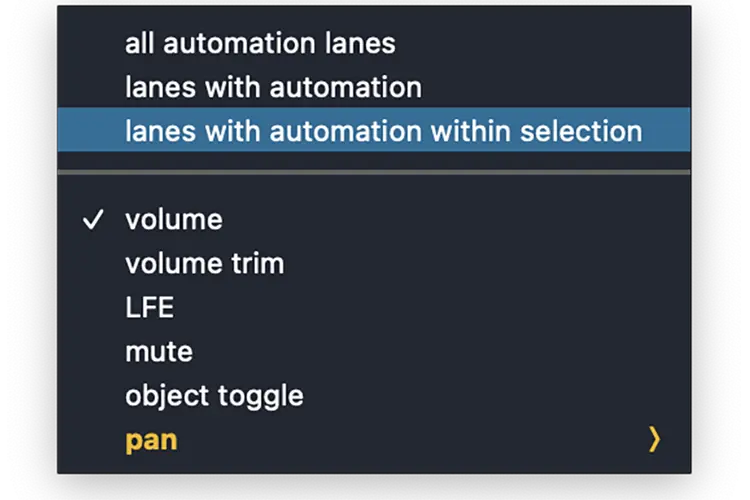
All of these commands now have assignable keyboard shortcuts, including a shortcut for the "Restore Previously Shown Tracks" command.
Search and filtering
The addition of the text filter in Import Session Data also opened the door to more search and filtering functionality throughout the application.
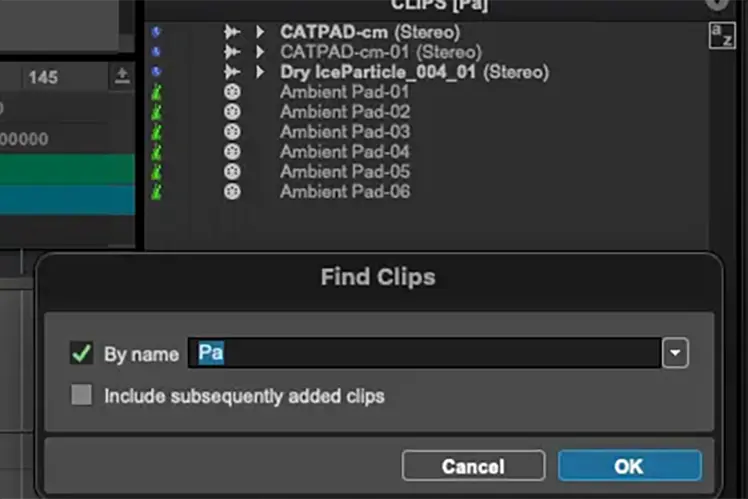
The Clip List has had the ability to "Find Clips" using a separate search window for a long time. The challenge with the previous functionality was that it was hard to see whether a filter was being applied. We have now added the same text filter box from the Import Session Data window to the Clip List. This makes filtering much more noticeable and easier to access. Accessing the Clip List filter via a keyboard command will even open the Clip List if it is closed.
 |
 |
We've also added a search box to the Preferences, which uses much of the same functionality as the other new filters. Instead of filtering, it highlights both the containing tab and the specific area where a text match is found. This makes it much easier to find items in the Preferences by keyword if you don't know the exact name or location

Dolby Atmos improvements
Pro Tools 2023.12 introduced the internal Dolby Atmos Renderer and Pro Tools 2024.3 introduced custom live re-renders. Pro Tools 2024.6 brings even more Dolby Atmos improvements.
Together with Dolby, we have introduced several new formats for monitoring and custom live re-renders. 9.1.4 and 7.1.2 unlock the internal renderer for more listening environments. Stereo Direct lets you hear a direct stereo rendering of the mix, without going through cascading downmixes.

Binaural mode settings can now be assigned directly from the Edit and Mix windows, letting you hear the effect on the mix immediately during playback. Dolby Atmos group settings can also be assigned from the Edit and Mix windows, giving you better context when making the assignment.
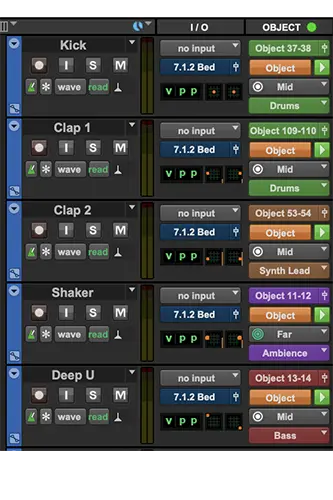
You can now solo and mute Dolby Atmos groups from the Renderer window. This means that as soon as you assign a group to a bed or an object, a solo/mute button is automatically available to quickly isolate or mute all the elements assigned to that group.
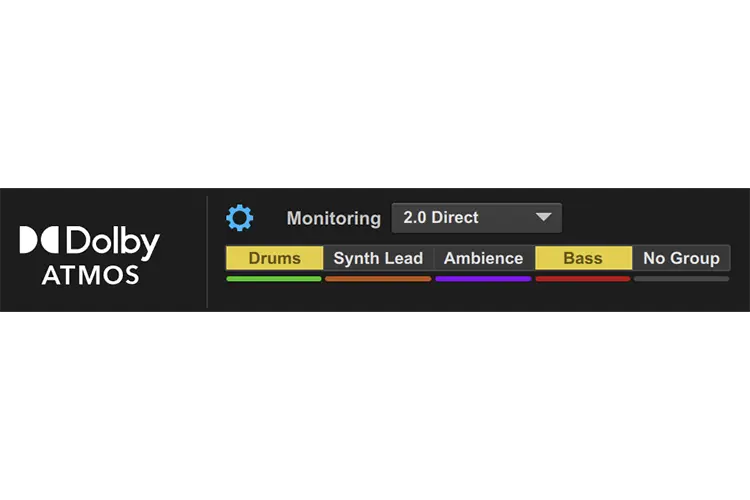
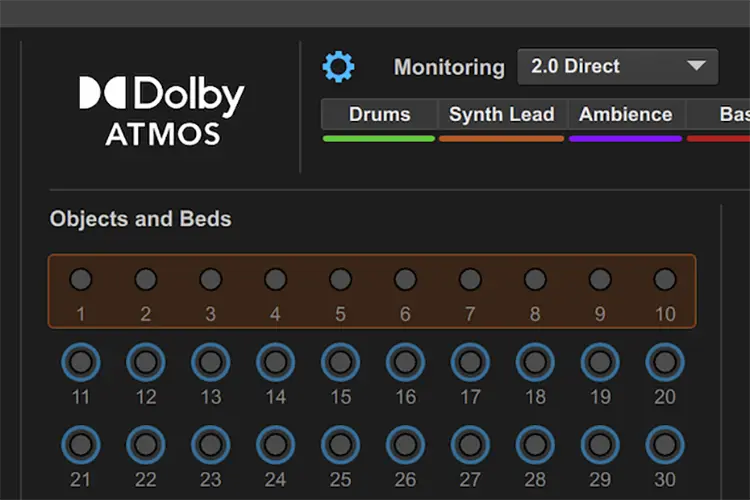
A new settings panel in the Renderer window gives you quick access to the fundamental Dolby Atmos controls, including various re-render settings, I/O setup, trim and downmix, and group settings. In previous versions, we used orange text to indicate when a session's trim and downmix settings differed from your personal defaults. Since the trim and downmix button is not always visible now, we made sure to carry this color over to the settings icon when the panel is closed, so you still get the same notification.
Finally, we've added the ability to bounce, commit and freeze signal from the internal Dolby Atmos Renderer. This means that if you're using the internal renderer, you can use Bounce Mix and select the physical output of your monitoring path, which is the renderer's output destination. The bounce will include the renderer output, any signal manually routed to the monitoring path, as well as any processing on the Master Faders for the renderer or the monitoring path.
You can also freeze, consolidate or bounce tracks that are receiving live re-renders as input. This is very useful when dynamic processing is required for any re-render stem deliverables, because any inserts on the receiving tracks will be included.
Memory location improvements
We have been continually improving our memory locations and marker functionality. Pro Tools 2023.6 introduced track markers; Pro Tools 2023.12 added four additional marker rulers, the ability to select multiple memory locations in the Memory Locations window, and keyboard shortcuts for navigating between previous and next memory locations; and Pro Tools 2024.6 refines this functionality even further.
After releasing the multi-selection functionality, we kept an eye on the forums and kept talking to customers. Although people were very happy to be able to batch-delete memory locations, we noticed that the implementation introduced some inefficiencies for certain workflows as well. People were finding that certain key commands, such as the up and down arrows, were being processed by the Memory Locations window instead of the Edit window if the Memory Locations window was accidentally left selected. We also noticed that people had trouble figuring out how to use the Shift+click modifier in the recall column to select from the current insertion point to the marker location. Because of this, we decided to adjust the implementation a bit. There is now a "Manage" mode. Manage mode lets you select multiple memory locations, delete them and even batch-rename them. When Manage mode is off, you can only select one memory location at a time, which makes it work similarly to previous versions of Pro Tools.
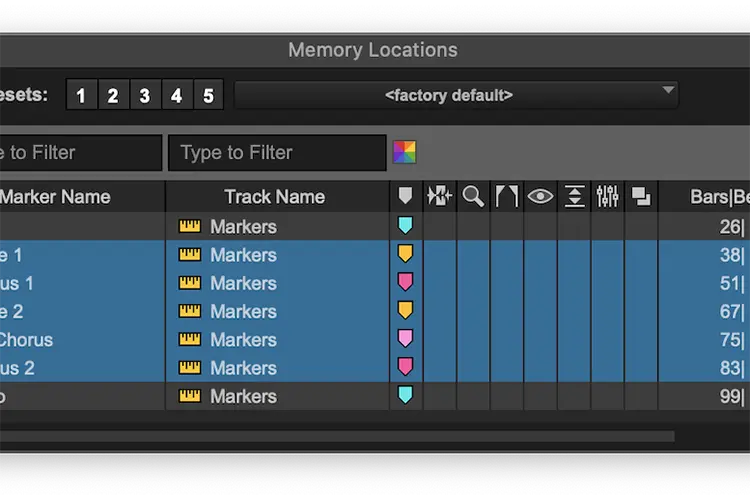
We also received feedback about the previous and next commands. There was a strong desire for the command to apply relative to your position on the timeline, so that's what we did. Now, in Pro Tools 2024.6, there is a new mode that allows the "go to" and "select" previous/next memory location commands to apply relative to your insertion point on the timeline. Since these commands are still based on your filtering in the Memory Locations window, you can filter just the desired track or ruler and limit which markers are affected by the commands. This is useful if you have a ruler dedicated to song sections or director's notes. You can focus on just that ruler and ignore the rest.

Media Composer session export
We have a combined team of Media Composer and Pro Tools engineers actively working on improvements to each application in order to enhance interoperability and sound-to-picture workflows. The first feature the team developed was Media Composer's ability to export Pro Tools session files in Media Composer 2022.12. Since then, the team has been making general improvements to each application, with the ultimate goal of improving interoperability. Track markers and exporting a session range were examples of this. Now, in Pro Tools 2024.6, there is the ability to export Media Composer–compatible sessions (.ptxm).

.ptxm files are created by selecting the set of tracks you'd like to export, opening the Save Copy In window and choosing to export a Media Composer–compatible session. Pro Tools will render the audio at the frame boundary for each clip, or as a full stem. If the panning format is stereo, 5.1 or 7.1, Pro Tools also gives you the option of keeping precise volume and pan automation. Alternatively, you can choose to always render. Any downmix will use the Pro Tools coefficient preferences, which means you have control over how the downmix will sound.
It's also possible to export Dolby Atmos re-renders as a .ptxm file. You can route any live re-render to an Aux Input track, then select those tracks and a timeline range. This is an excellent way to take advantage of Dolby Atmos grouping and split re-renders into different groups, resulting in rendered Dolby Atmos stems that can be delivered directly to Media Composer. Any markers added to the Aux tracks or the timeline will be included.
Media Composer 2024.6 will be the first version to support these types of sessions. It adds 16 marker colors, as well as support for receiving precise volume and pan automation; it can also continue editing automation at subframe boundaries.
A .ptxm file is, for all intents and purposes, a session file. It can be opened in Pro Tools just like any other session file, but it guarantees that all of its content can be supported by Media Composer. Over time, we will expand the capabilities of each application, bringing their functionality closer together and increasing what the .ptxm file will support.
MIDI note display
Previously, there was no way to see the pitch value of recorded or played notes. And for those unfamiliar with music theory, it could be challenging to keep track of notes in the Piano Roll, since notes other than C had no pitch indication. A View Options menu entry with two settings has now been added to the MIDI Editor (docked and windowed) that lets you display pitch labels on MIDI notes and on the keyboard. In addition, the new Show Flats button lets you toggle between displaying flats and sharps on both the MIDI notes and the keyboard. All of these settings can be saved separately for the docked and windowed MIDI Editors.

Finally, played notes (whether from an external MIDI keyboard or the virtual keyboard) are now colored for better visibility.

Copy/paste improvements between Pro Tools and Sibelius
Pro Tools 2024.3 introduced seamless MIDI copy/paste to and from Sibelius, allowing composers and producers to easily move music from one application to the other. Building on this functionality in 2024.6, users can now copy and paste key signatures, meters and tempos between both programs, providing a more efficient workflow for music creation.

In Pro Tools, copying a MIDI clip will also copy the corresponding key, meter and tempo data for that specific section. By including the rulers in a timeline selection, you can now easily paste all the note, key, meter and tempo data from Sibelius.
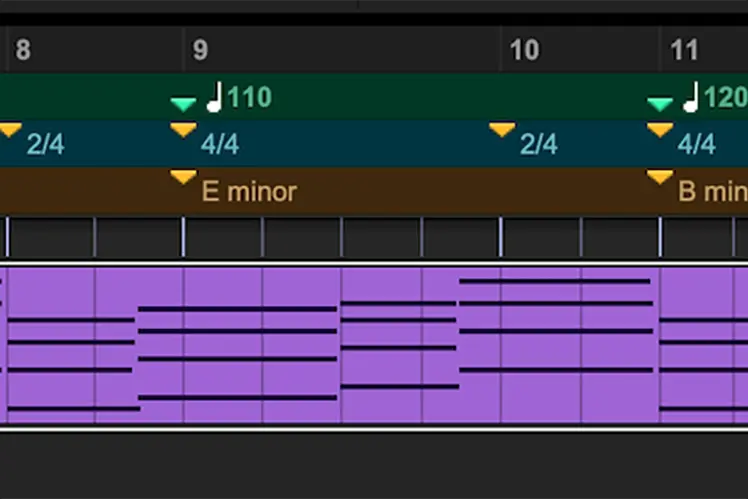
For more flexibility and control, you can paste the ruler data separately onto the MIDI notes by selecting one or more rulers and using the paste command as usual.
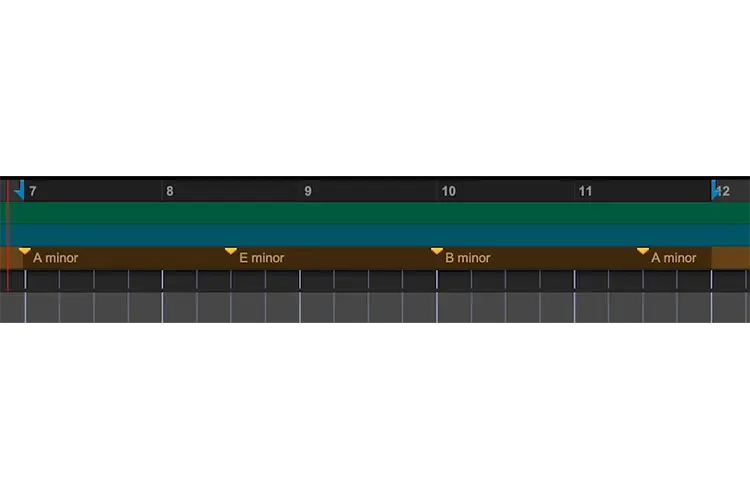
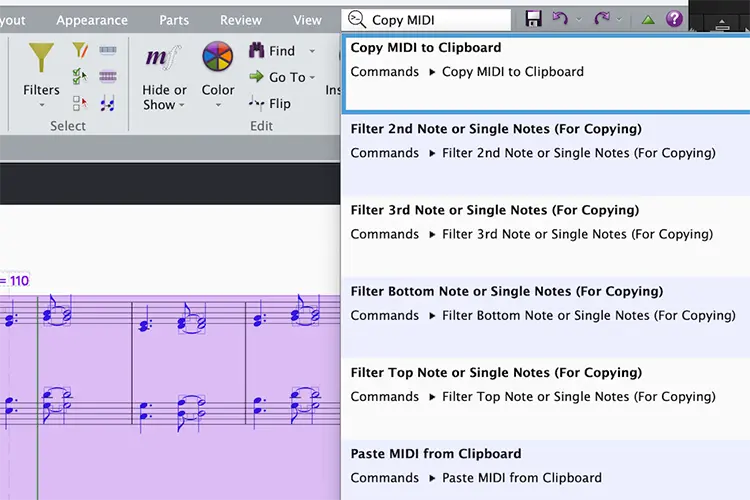
Sibelius lets you copy and paste notes, key signatures, meters and tempos simultaneously by creating a system selection and using the Copy or Paste MIDI to Clipboard commands.
Drag-and-drop improvements in Sketch
Users can keep their creative flow going when working between the Pro Tools Edit window and the Sketch window thanks to handy drag-and-drop workflows. It's now possible to drag entire scenes and the full arrangement from the Sketch window to the Edit window, preserving both audio and MIDI elements. Starting with version 2024.6, this will include support for Pro Tools | PlayCell on both platforms. When an idea with a PlayCell preset loaded is dragged from Sketch to the Edit window, Pro Tools will automatically add the corresponding AAX plugin with the preset.

And much more
Here are some of the highlights:
- - Enable/disable groups of checkboxes in multi-select menus with Opt+click (Mac) / Alt+click (Win).
- - Move the current edit selection to the marker ruler with Cmd+click (Mac) / Ctrl+click (Win).
- - Assign a keyboard shortcut to show and hide all marker rulers at once.
- - Use new advanced keyboard shortcuts to trim the current edit selection, match only the start or end of the timeline and edit selections, and set pre/post-roll using the current edit selection.
We hope you've noticed some of the trends in our recent updates. We are working to deliver continuous improvements as they are ready, rather than waiting years to release a full version with every feature. We are also closely monitoring the features we release and making adjustments as needed. We understand it can be concerning if a new feature doesn't include everything you expected, but we want to show you that each update is just one step in the process. Thank you all for your continued support, from the Avid team.
Availability
Pro Tools 2024.6 is available now for all Pro Tools customers with an active subscription or a perpetual license with a current upgrade plan, as well as for all Pro Tools Intro users. You can update through Avid Link or find it in your Avid account. You can download the Pro Tools Sketch app for iPad for free. If you need to upgrade your perpetual Pro Tools license to get the latest features, you can find options for doing so on Avid's official page. And if you're new to Pro Tools, you can try the latest version with the free 30-day trial.


