
We put the HD Omni through its paces at ISP Música: an interface that brings together AD/DA conversion, mic/instrument preamps, monitor control for up to 7.1, a headphone output, automatic fold-down and a standalone Pro Tools mixer in a single chassis… At first glance, the Omni looks ideal for producers and musicians with small HD systems, but inside this rack unit (1U) there are several features that will likely open the doors of larger recording and post-production studios.
Preamps
The Omni’s two preamps accept mic and instrument signals, and feature a selector on the front panel next to the two combo (XLR/TRS) connectors that receive the signal. These are digitally controlled preamps, with an encoder for adjusting input gain (from +10 to +65dB). Both preamps can be operated independently (pressing the encoder switches between them), but they can also be linked to operate in stereo with the front-panel LINK 1&2 button.
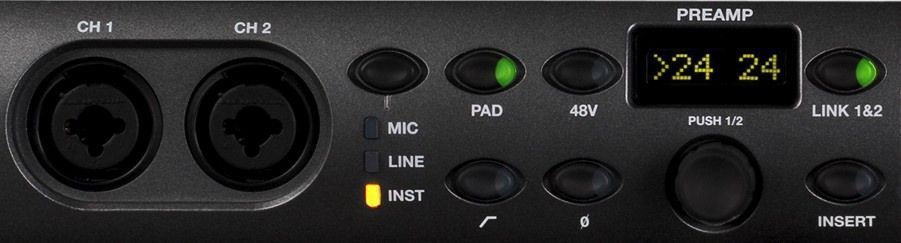
The PREAMP display shows information about the preamps, such as which one is selected, whether they’re operating in stereo, the gain value of each, and so on.
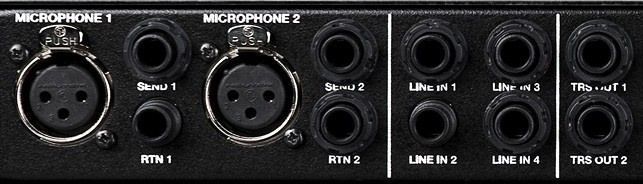
Each preamp also has a pad (-20dB), 48v phantom power, a high-pass filter (12dB per octave, from 85Hz) and a polarity inverter, which can likewise operate in stereo or independently. There are also individual insert points (on two TRS connectors each, located on the rear panel) for using external processing on these channels before they enter the AD converter. Specifically, the insert occurs before the Soft Clip and Curv Limiter circuit (more details below), but after the pad and high-pass filter. The send through these connectors is always active (which lets you use this signal for other purposes, such as a send to a reverb for monitoring), but to activate the return you have to press the front-panel INSERT button. Having this insert button means both returns can be patched and used as additional connectors alongside the rear line inputs, if needed.
Monitor and Headphone Controller
Moving along the front panel, next is the set of LEDs that indicates interface status, sync and sample rate, and eight five-segment meters for monitoring input or output signals. New to the current HD interfaces, a front-panel button lets you select whether input or output is displayed, and the LEDs indicate the chosen option.
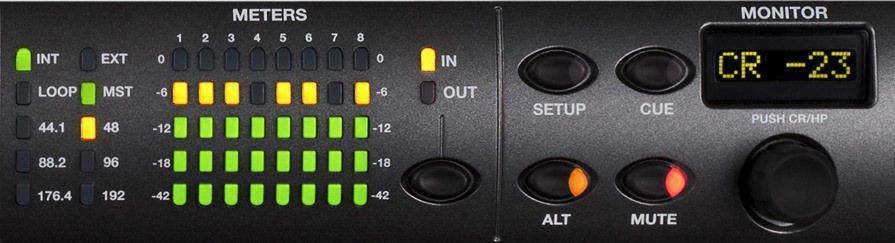
Next comes the monitoring section, designed to handle several tasks. By default, the path controlled through this section is the main one (MAIN), and the ALT button switches to an alternate path, so two different sets of speakers can be driven from the same unit. These paths are preset, are called CR paths or Control Room monitoring paths, and can each consist of between one and eight channels (there’s a more detailed explanation in the Monitoring section). There’s a third preset path called CUE which, as its name suggests, provides an independent headphone mix, enabled on the headphone jack—located at the far right of the front panel—with a button of the same name. In every case, an encoder controls the level of the signal sent to either the main/alt output or the headphone jack (you switch between them by pressing the encoder).
The section is rounded out by a Mute button that affects the main output (but not the headphones), a display showing various information about the section, and a SETUP button. When the HD Omni enters Setup Mode, the encoder can be used to adjust clock options, reference levels, sample rate, fold-down, TRS mirrors and more.
Connectivity
The interface offers eight simultaneous input and output channels (a maximum of four analog input channels), and has an impressive collection of connectors to feed them.
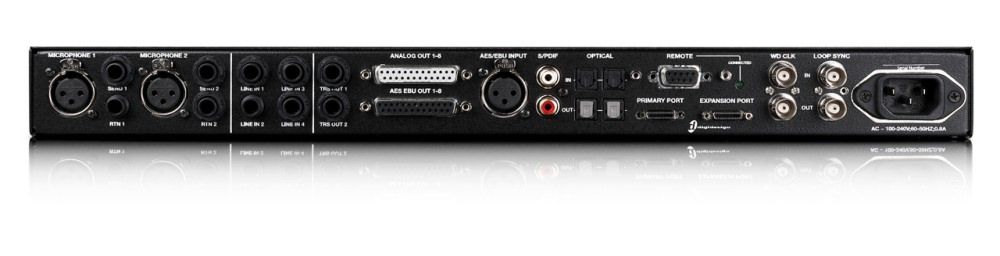
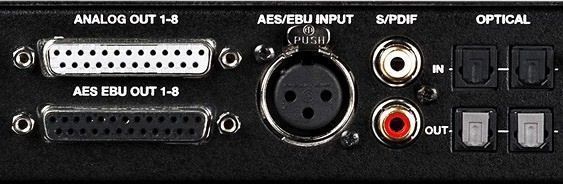
For starters, the two mic preamps have two additional XLRs on the rear panel, which automatically yield the connection to the front-panel ones if input signal is detected on the latter. Next to them are the aforementioned send and return connectors, and immediately to their right are four TRS line inputs. You can also feed the Omni via AES/EBU (two channels through an XLR connector), S/PDIF (two channels on an RCA connector), or over an optical Toslink connection. In the latter case, there are two optical input ports, providing eight channels of ADAT (working at 44.1/48kHz), four channels of S/MUX II (88.2/96kHz) or two channels of S/MUX IV (176.4/192kHz).
As for outputs, there are two TRS connectors that provide the signal from channels 1&2 or 7&8, an option selected either in Pro Tools in the Hardware Setup or through the Omni’s Setup mode (TRS Mirrors). You can also get all eight balanced analog channels on a DB-25 connector, eight channels of AES/EBU (another DB-25) or two channels of S/PDIF (RCA).
If you want to go out optically, there are two Toslink ports that, similar to the inputs, provide eight, four or two channels (again, the number depends on the sample rate used).
Monitoring
To organize this variety of connections, the Omni has its own tab in the Pro Tools Hardware Setup, called Monitoring.
 It’s a virtual patchbay where you decide which outputs will be used for the MAIN and ALT monitoring paths, from among all the possible ones (Analog 1-8, AES/EBU 1-8, Digital…). Both can contain a variable number of channels, configurable from mono up to 7.1, so they can be used, for example, to switch between two pairs of stereo monitors, or even two full 7.1 systems.
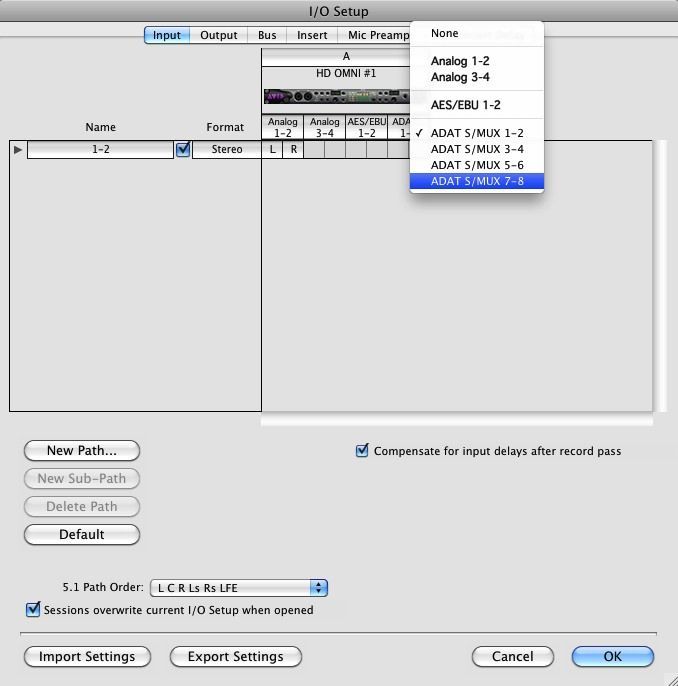
By default, the Omni comes configured with a 5.1 main path and a stereo alt, so you may need to adjust this tab to your studio’s preferences at first. In this respect, when setting up the interface it’s best to start with this Monitoring section, since the choices made there affect other sections such as I/O Setup. For example, any output taken by main/alt will appear as Monitor in the I/O Setup tab and won’t be available as an assignable output for other uses.
The Monitoring tab is also where you adjust the fold-down options, which can be set up in three different ways. First, it can be done independently for each CR path, setting one type of downmixing for MAIN and a different one for ALT.
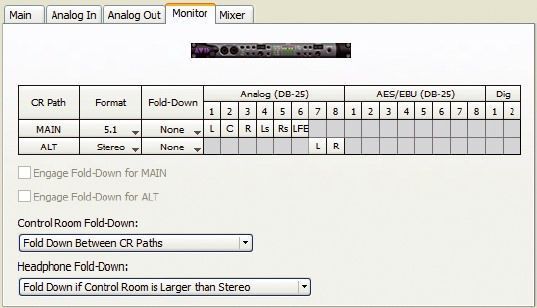
Another option is to have the switch happen between them, which lets you, for example, listen in 5.1 on MAIN and check how the mix translates in stereo on ALT. Finally, you can also set the fold-down to happen at the headphone jack, to check the channel reduction on headphones. Some of these options have further sub-options of their own (omitting the LFE channel, including only L and R, and so on). Users interested in this aspect can consult the manual for more details, available on Avid’s website.
Mixer, Soft Clip and Curv
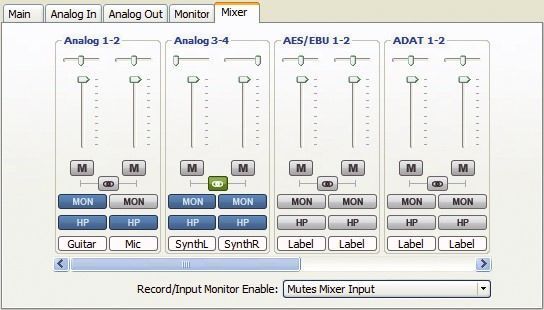
The Mixer tab is also something new that the HD Omni brings. It provides a virtual mixer that routes the signal found at the interface’s inputs to any of the monitoring paths, even if Pro Tools isn’t running. This lets you, for example, connect a CD player to the Omni and listen to it through the studio monitors without even turning on the computer.
As for the Soft Clip and Curv technologies, they are two new features common to Avid’s new HD interfaces, which provide a control (limiter) on the analog inputs to prevent clipping.
In the Analog In tab of the Hardware Setup, next to each analog input there’s a dropdown where you can choose whether to apply no limiter (None), control the last 4dB of headroom (Soft Clip) or attenuate the input signal with a soft-knee limiter (Curv).
In Action
One of the details people ask about most on the new HD interfaces is how the new AD/DA converters perform, since both the HD I/O system and the HD Omni feature a new Avid converter design.
During testing, we had the chance to compare the Omni with a 96IO. To do so, the signal from a CD player was recorded with both interfaces so we could A/B the results afterward. In every case—the test was done with music ranging from Adderley-Evans to Coldplay, by way of Black Eyed Peas—we could confirm that the converters in the new interfaces provide more detail and a more solid stereo image than those of the previous series. As for the rest of the elements, the mic preamps are high-quality, clean and transparent, and have all the desirable extras (phantom, pad, high-pass and polarity).
The option to operate in stereo is handy and convenient, and it would be very good news if in future versions the preamps could be operated from Pro Tools, as with the PRE system.
In any case, the preamps are exactly what they should be in a unit like this: transparent, with multiple options, low noise and good dynamic range. The ease with which they can be operated, in both mono and stereo, is also worth mentioning. Setting up a last-minute overdub, whether vocals, keyboards or anything else, is frankly quick. The meters are easy to read, and the ability to switch between input and output with a button is certainly a welcome addition to the HD series.
The monitoring section is also comfortable and well designed, although a talkback system is missed on the Omni, which would have made it the perfect nerve center for many studios. Some users may also miss a Dim option to attenuate the signal sent to the monitors by a fixed amount.
Back on the positive side, the Omni’s internal mixer lets you connect different sources without turning on the computer, certainly another of the interface’s big new features that can save time in the studio.
Given the large number of front-panel controls it has, the Omni seems designed to be installed in the control room, although there is a port called Remote. There are no details about this port, but it could point to a possible remote controller for the interface since, as with previous interfaces, DigiLink cables can be up to 30 meters long (working at 96kHz or below) or 15 meters (at sample rates above 96kHz).
As for how the interface operates, it’s intuitive and comfortable to use, with perhaps the only exception being the Monitoring tab. That’s not because this section is complex; it’s simply new, so you need to take a look at the manual to see how it works. This shouldn’t be taken as a negative; quite the opposite. The Omni has a good number of connection and routing options, which makes it more powerful than it may seem at first glance.
Conclusions
Avid has expanded its interface lineup with a system designed to meet the needs of different users at the same time: mic preamps, AD/DA conversion, monitor control, headphone monitoring… The HD Omni’s build quality is impeccable, inside and out, and the connection options are broad and varied, which will make it easier to integrate the system into different environments and situations. In this regard, the interface’s merits as a surround monitor controller may be an incentive for many users. It’s true that other manufacturers offer products in this area, but the Omni’s tight integration with Pro Tools could be a decisive point in its favor. In short, a well-conceived, high-quality product that can find a place in a good, varied number of studios.
Specifications
Analog inputs :4
Analog outputs :8
Mic/instrument preamps :2
Mic preamp gain :65 dB
Headphone output :1
Monitoring section :7.1 / 5.1 / stereo / mono
Speaker selection :2 sets (Main and Alt)
Persistent mixer :14 x 26 channels
AES/EBU input and output :2 x 8
Single-wire AES (192 kHz) :yes
S/PDIF input and output :2
ADAT input and output :8
S/MUX support :S/MUX II and IV
SRC :AES, S/PDIF
Word Clock I/O :1 input + 1 output
Loop Sync I/O :1 input + 1 output
Curv :Yes
Soft Clip :Yes
Connection port :DigiLink Mini
Chassis :1U rack-mountable stackable chassis
Mic inputs:
Frequency response :20 Hz to 20 kHz, +/-0.05 dB
Gain range :65 dB
EIN :-128 dB
THD+N :-107 dB (0.00045%)
CMRR :-93 dB
Line inputs:
Frequency response :20 Hz to 20 kHz, +/-0.03 dB
Dynamic range :118 dB, A-weighted
THD+N :-111 dB (0.00028%)
Line outputs:
Frequency response :20 Hz to 20 kHz, +/-0.03 dB
Dynamic range :120 dB, A-weighted
THD+N :-108 dB (0.00039%)
Line output level / gain :+10 dBu or +24 dBu/-40 dB to +10 dB (0.1 dB increments)
Headphone output:
Frequency response :20 Hz to 20 kHz, +/-0.03 dB
Dynamic range :118 dB, A-weighted
THD+N :-107 dB (0.00045%)


