 The moment I was introduced to the following software, these words came to mind: “If I’d had this before, the time and effort I would have saved.” The number of times I’ve been asked this question: “I have an audio file of such-and-such song. Could you pull the vocal out of the track? Could you get the music so we have the backing track?”
The answer has never been so easy, thanks to the software that brings us together today. With ADX TRAX PRO 3, we can tackle and separate the lead vocal from the music. As its little brother, we’ll also discuss the ADX SVC plug-in, whose main feature is that, starting from a track with a lead vocal and a musical background, we can choose the volume of each part.
So if you have an already mixed recording with no way to access the tracks separately, with these two software applications you can separate, treat, edit and so on the music on one side and the lead vocal on the other.
Functionality
We can say that one of the main problems we run into when we open a piece of software is really knowing what it does. So the question we instinctively ask ourselves is: what will we be able to do with the two stars that bring us together today? Referring to the first, ADX TRAX PRO 3, we can separate the lead vocal from the music, and so raise or lower it, edit it, etc.
As for the plug-in, which comes for all the formats, VST, AU and AAX, it has a very friendly look, a user environment as easy to use as its predecessor’s. In my case it shows up in the “Other” folder within the drop-down menu of all plug-ins, and it apparently doesn’t consume many resources when you use it. On the other hand, its use will generally be “off the road”; it may be less common to do a mix with the plug-in active, or a recording. Even so, it lets you automate its functions. So you can alter the volumes, as we mentioned before, of the lead vocal and the musical background.
How it works
Let’s start breaking down our two new heroes, and so we’ll learn a bit more about how to interact with them.
Starting with ADX TRAX, we can say that it runs from its own application. This has its advantages, since because it runs, generally, outside the purview of a recording system, the machine will be much less strained. What we probably want is to separate the vocal from the music starting from an audio file. We apply ADX TRAX to the track and get the desired result, that is, the two tracks separately, leaving us free to do what we need with them. So we aren’t obliged to fire up Pro Tools, Logic or whatever recording platform we are using. To begin, we have to Open/Create a project in which to apply the relevant changes to the desired track.
At the same time it gives you the chance to consider different options for how you want to interact with the application, over the data it handles. From improving vocal pickup, to its frequency menu, to separation automation, etc.
The ADX TRAX work environment, that is, the Workspace, can be divided into different sections:
Separate
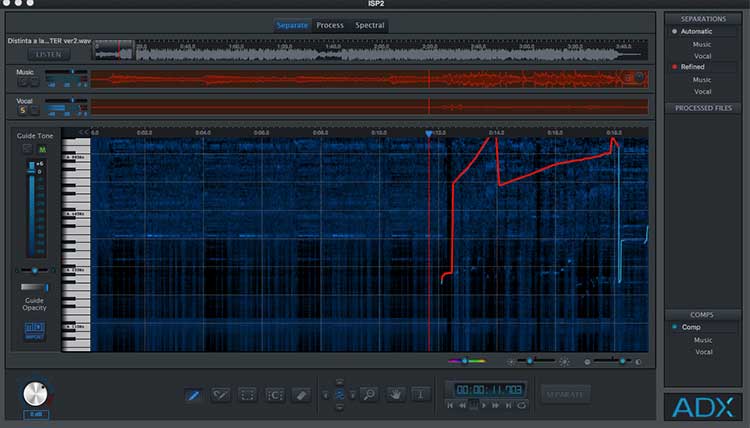
Located at the top, these 3 tabs let us select to a large extent what kind of function we are going to apply to our track, especially in a more global way. So the Separate tab is the first phase in our track separation process. In it you can define the parameters to pick out the melody well. That is, you can specifically select the range where your lead vocal sits, with the aim of being more precise when capturing it. You can also adjust the volume levels, as well as the final L/R.
Process
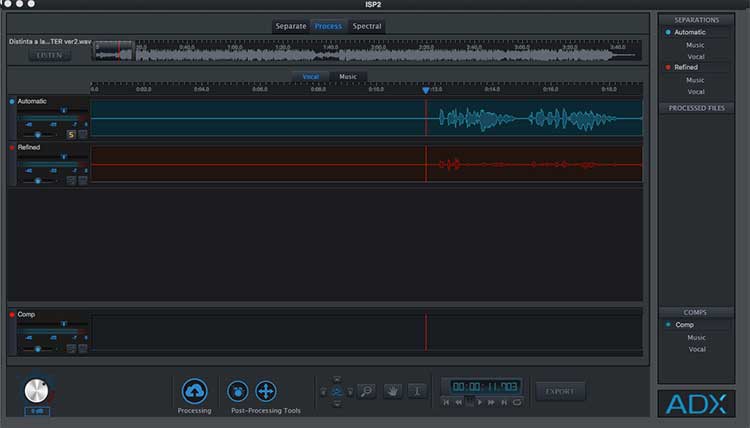
In this section we can be much more precise with our goals when separating the voice from the music. In this option we’ll be storing the tracks we get as a result of applying our capture parameters. This gives us a stack of tracks, each with small changes depending on the parameters used to obtain it. At the end of this phase, what we do is make a combo of the set of captures made, resulting in a much more optimal vocal track.
Spectral
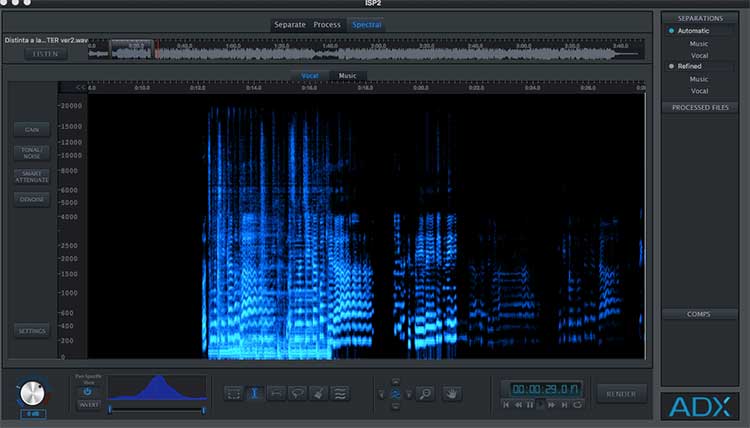
This menu is the last step in the process. With it you can be much more precise in the separation, and like a Swiss watchmaker, you can go through the spectrogram note by note, checking whether any music has crept into the vocal track, or vice versa.
On the right-hand vertical side, we have quick-access menus to the vocal or music sections, whatever phase of the process we are in, whether in separations, combos or files we are using in the process.
If we move into the central part of the application, we can divide it into 4 sections:
a. Original track ruler. That is, it is simply a line where the original, untreated song appears, and where you can move around, and so know where you are at all times within the original track.
b. Music and Vocal rulers: As in the previous case, you have the options of viewing separately, on two accessible lines, the vocal on one side and the music on the other. With Mute and Solo buttons, as well as a volume control.
c. The Pitchogram, as they call it in the application. It is a graphic representation of where the voice and music are located a priori, and where you can select, paint, erase, move, etc. as well as the frequency selection parameters for capturing the voice. At the same time, on the left side, vertically, a small keyboard appears, with which you can hear, if you need to, the note reference with respect to the voice itself.
d. At the bottom you have the toolbox, where you can select pencil, lasso, eraser, etc. for any option. But this section varies depending on which top menu you have selected, since the tools needed for Separate are not the same as for Process or Spectral, where you even have the option of a spectrogram viewer.
ADX SVC on Pro Tools
Now it’s the little brother’s turn, ADX SVC. For these tests we ran it on Pro Tools 10. A brief word on how easy it is to install. We already know the trouble a new plug-in can give us. But in this case everything worked easily and efficiently. We can divide the plug-in into 4 sections:
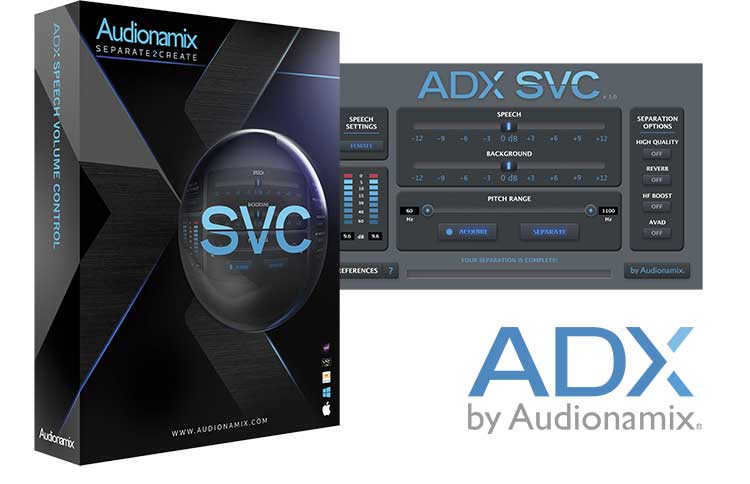
i. Speech Setting: An option for selecting what type of voice we’ll be dealing with: Male/Female. Then we can be more precise with the frequencies. ii. Volume control for both parts: Voice / Music. With a range of -12/+12 dB. iii. Pitch Range: With this little bar, you can be much more specific depending on which frequencies you want to emphasize for capturing the voice.
iv. Separation options: you have different parameters such as HIGH Quality, which although it takes a bit longer is much more precise at extracting the speech. The Reverb option is an alert so the separation algorithm takes into account the reverb or the room in which the voice was captured. Boost gives greater consideration to the higher frequencies. AVAD is a useful option for occasions when the algorithm may conclude there are sections with no voice when there actually is. With this checkbox, it will scan the whole track without distinction.
| RATING TABLE | ADX SVC |
| Installation | 8 |
| Resource usage | 7 |
| Versatility | 7 |
| Graphical interface |
7 |
| Value for money | 8 |
| Stability | 8.5 |
| Average | 7.56 |
Conclusions
As a final flourish for this more than interesting pair of applications, I’d say their usefulness can at times be more than important; it can even be a matter of survival. Needless to say, many of you reading this article have surely found yourselves in that situation. With a more than reasonable price, you can come out of some circumstance unscathed that would have cost you a lot of time, effort and money to solve.


