
In the past, Native Instruments (NI) was known mainly for its “software instruments.” They started out in 1996 with the Generator synthesizer, and since then their products have earned a place among the everyday working tools of many musicians, producers, and sound designers. Synths such as Absynth, FM8, or B4 Organ, samplers such as Kontakt, Battery, or Akoustik Piano, and the powerful Reaktor modular environment are some of the products that carry the NI name.
In 2004 the company launched Guitar Rig, a virtual amp and effects emulator for guitars and basses, and a year later Guitar Rig 2 was born, which included a hardware controller called Rig Kontrol. This controller connected to the computer via USB and let you interact with the program, offering, among other things, two instrument inputs and a pedal controller.
And it is precisely along this latest line of software-hardware integration that the Audio Kontrol 1 and Kore products come to us, each presenting a new proposition. This article reviews the first of them, leaving the Kore test for the next issue of ISP.
Introduction
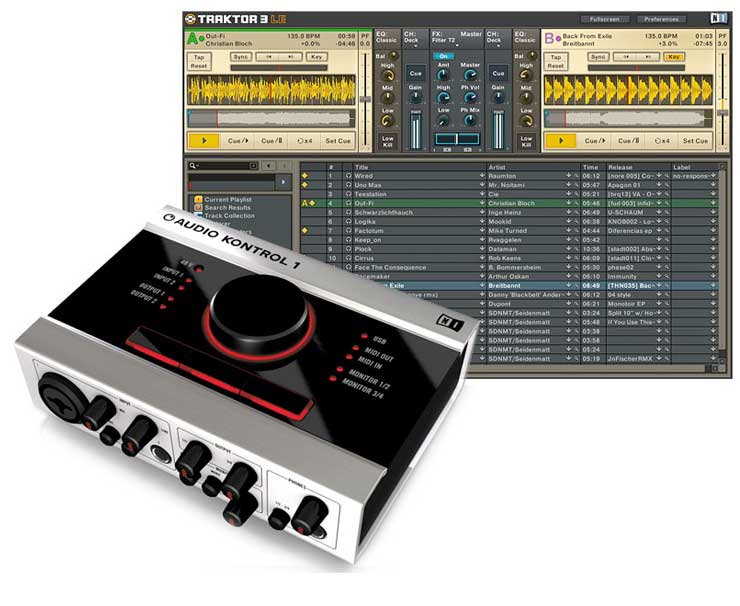
The Audio Kontrol 1 is a USB 2.0 interface that provides two analog inputs and four independent outputs, a headphone jack, MIDI I/O, and 48V phantom power. So far, so normal. The differences begin with the large rotary knob on top of the unit which, together with three configurable buttons, provides direct access to many of the parameters of the software you’re using.
To describe the usefulness of these controls, NI uses the phrase “feel the software,” which, marketing aside, makes clear the idea behind the interface’s design. Considering that, in addition, the AK1 can be fully integrated with the Traktor DJ program (thanks to those two pairs of independent outputs), the least that can be said is that this proposition is out of the ordinary.
In Detail
The design is really good: an elegant combination of aluminum and black acrylic, sturdily assembled. The unit draws attention immediately, and when examined more closely, it conveys that pleasant feeling of security and solidity that well-built things give.

The AK1 is somewhat smaller than most interfaces in this range, but it presents a good number of controls, which suggests the space has been used very well.
On the front panel are the two inputs, each with its own gain knob. The first is line/mic on a balanced XLR/TRS combo connector, and the second is line/instrument on TRS (also balanced). Two respective buttons let you select the type of source plugged into each connector. Two more knobs control the signal on outputs 1-2 and 3-4, and below them is the section called Monitor, which is used to bypass the AD/DA converters and directly monitor the inputs on either of the outputs.
This option is activated with the On button, and the knob adjusts the balance between the direct signal and the signal coming from the computer, similar to the Mix control on other interfaces. The Mono button sums the signal of the two inputs and sends it to the monitoring bus.
Finally, the headphone jack (TRS) with its own knob and a button to select which output is monitored (1-2 or 3-4) complete this front panel.
On top of the unit are the programmable controls: a large rotary knob (curiously called the “spin knob” in the manual) and three more buttons. MIDI commands and keyboard shortcuts can be assigned to them interchangeably, to quickly access different functions in different programs (details below).
Next to them is a good number of status LEDs that provide information about phantom power, active inputs and outputs, MIDI, and monitors. On the back, the four independent outputs (balanced TRS) share space with the USB 2.0 connection, the MIDI In/Out ports, and the phantom power switch.
Software
The AK1 comes with a good bundle of programs, including Xpress Keyboards (versions of the B4, FM7, and Pro-53 products), Guitar Combos (with three emulations: Ac Box, Plexi, and Twang), and Traktor 3 LE.
Along with the interface’s drivers and documentation, the so-called Mapping Application is installed:
Feel the Software
As mentioned at the start of the article, one of this interface’s strong points is the inclusion of four programmable controls (the wheel and the three buttons). You can assign both MIDI messages and keyboard shortcuts to them, so even if an application doesn’t support MIDI automation, you can still use its keyboard shortcuts through the interface. This means that practically any program can benefit from the AK1’s controls.
These controls are configured through the Mapping Application. In essence, this application is in charge of programming “what to do” when a particular button is pressed or the wheel is turned.
That “what to do” can be sending a MIDI message or simulating that a certain key combination has been pressed in an application. In fact, you can specify different actions for when the button is pressed and for when it is released, or for when the wheel is turned left or right.
Logically, you can save different configurations in what are called pages (similar to presets in a plugin), to quickly reprogram the controls for different applications. Pages for the various NI products come included from the factory, along with others for Cubase SX, iTunes, Winamp, Reason, Photoshop CS2...
However, once you get the hang of the application, what is really powerful is creating your own pages. For example, it took only seconds to program a page for editing in Pro Tools in which the wheel controlled zoom; the left button split regions, and the center and left ones cut and pasted, and another for recording, in which the buttons controlled Rec, Play, and Stop.
In fact, using a feature called “layers,” up to 10 different actions can be saved on each page. Setting aside audio, any application you use regularly can have its keyboard shortcuts controlled by the AK1.
How to Use It
In a home studio the interface can be used in a “traditional” way. The maximum sample rate is 192 kHz at 24 bits (ASIO drivers for Windows and CoreAudio for OS X), and the two pairs of outputs let you separate the musician’s headphone mix from the main mix in the control room.
The instrument input can be used directly with the Guitar Combos, and the MIDI ports let you control the three keyboards in Xpress Keyboards. In addition, the programmable buttons will be useful for controlling various DAW parameters from the unit.
I would like to point out that it would have been interesting if both inputs were mic/instrument/line, since this would have provided more flexibility when recording, but apart from this detail, the interface will easily find its place in any home studio.
Traktor 3 LE
However, one of the applications that caught my attention most is the integration with Traktor 3 LE. A cut-down version of Traktor 3, this program emulates a DJ mixer with two decks and lets you DJ from the computer.
The truth is that until recently this world was totally foreign to me, but I recently had the chance to witness the work and equipment of a rap group’s DJ.
Perhaps that’s why I was surprised to find, shortly afterward, an interface that provides a way to carry out this activity entirely from a computer (forgive me, users who are experts on this subject, if I make any mistakes).
The manual suggests two ways of using the AK1 with Traktor 3 LE. The first consists of routing the stereo output of each virtual deck to one of the interface’s two outputs, and connecting those to an external mixer. This gives you the program’s versatility for previewing songs, selecting cue points, and so on, while keeping the feel of a real mixing desk.
The second option takes advantage of one of the Mapping Application’s pages and makes use of Traktor 3 LE’s virtual mixer. In this configuration, it is the virtual mixer’s output that is routed to a stereo output of the AK1 (the other isn’t needed), and from there to the PA, an external recorder, and so on. Using the interface’s hardware controls, you get access to the program’s main parameters, including the Master Fader, Start/Stop and Pitch for each deck, and the Crossfade between the two channels.
Final Verdict
Without a doubt, this is a truly versatile interface that will satisfy the needs of any home studio while also offering solutions in a field, DJing, that has been relatively unexplored until now.
For the former, it offers a 24-bit/96 kHz recording solution with useful software tools (Xpress Keyboards and Guitar Combos), and for the latter, a physical interface for working with Traktor LE (the upgrade to Traktor 3 is available) or similar programs. In both cases, the usefulness and convenience of the programmable controls is obvious, and they can end up saving a lot of time on certain tasks, even outside the audio field.
With a solid, elegant design that is easy to fall in love with, the AK1 offers a lot of features in little space. As for the Audio Kontrol 1’s big brother, Kore, details will be in the next print issue of ISP Música magazine.


